Thunderbolt bug fix on Lenovo ThinkPad T480, T480s, T580, X280
!!BACKUP everything!! just in case something fails.
Thunderbolt Issue (applies to t580/t480/t480s/x280)
The thunderbolt firmware on launch units had a bug where certain debug info is written on certain events, such as plugging in a charger to the USB-C connector. Log data is stored in the Thunderbolt firmware’s own SPI flash, which is separate from the main SPI flash containing the system firmware e.g. coreboot.
This photo shows that flash chip on a ThinkPad T480:
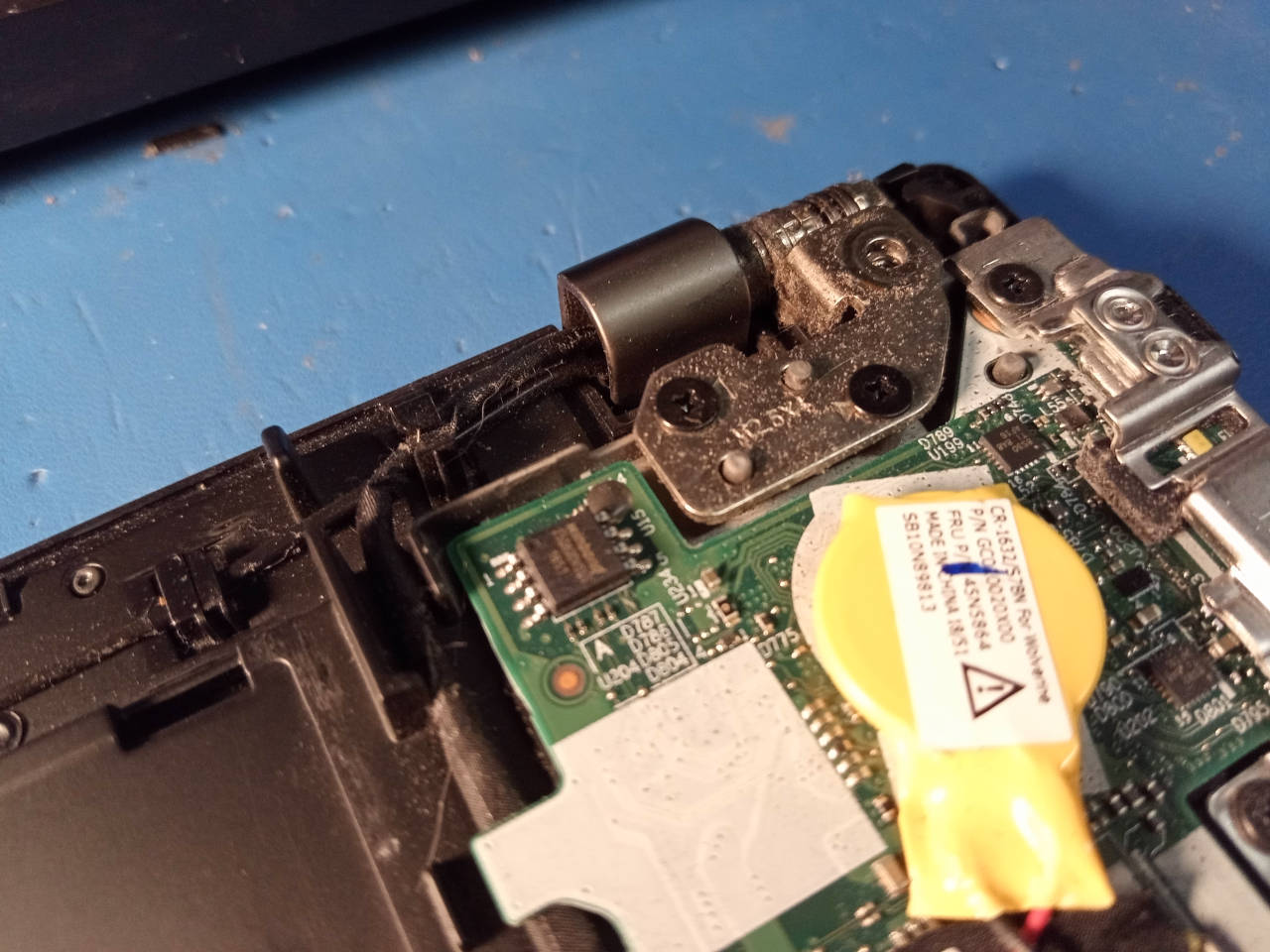
TODO: show photo for T580 as well. NOTE: the flashes are in similar locations on the T580. The ThunderBolt flash is smaller; same pin pitch, but not as wide, so attaching the clip will be a lot more delicate than on T480, but it does work.
It’s also present on the T480S (S model), but in a different location; on the S model, the main system flash is still located somewhere near the centre of the board, and the ThunderBolt flash near the edge of the board, as it is on the T480, but the T480/T480s use slightly different wiring and they have a slightly different board layout.
What is the problem?
If that flash gets full, thunderbolt PCI-E stops working and fast charging stops working, but slow charging still works. The issue can be prevented by updating the firmware. See:
If you’re already affected by the bug, you can restore it to a working state by flashing the Thunderbolt firmware externally. You cannot fix the issue with Lenovo’s software-based flasher, if the issue is already present, so you must flash externally in that case; you can also flash externally, even if the issue is not yet present.
External flashing
You will flash the ThunderBolt firmware externally. It is on a SOIC8 25xx NOR flash, similar to the one where coreboot is flashed, and located nearby.
Use the 25XX NOR flashing guide if you need to flash this chip. It’s the same guide that you will use for the main system flash, which is a separate flash IC.
Download ThunderBolt firmware
The firmware can be extracted from Lenovo’s updater, specifically the .exe file. For your convenience, lbmk (Libreboot’s build system) can download this for you. Run the following commands in lbmk:
(please install build dependencies first)
Commands:
./mk -d coreboot lenovo_thinkpad_t480s_16mb_uefi
./mk -d coreboot lenovo_thinkpad_t480_16mb_uefi
You will find the files at these locations in lbmk:
vendorfiles/t480/tb.binvendorfiles/t480s/tb.bin
These have already been padded, to the correct size of 1MB, whereas the original size (within the .exe file) was 256KB.
These files are also generated, if you used the ./mk inject command, on a pre-compiled release image, as documented here.
Flash the ThunderBolt firmware
PLEASE PICK THE RIGHT FIRMWARE - for example:
vendorfiles/t480/tb.binvendorfiles/t480s/tb.binvendorfiles/t580/tb.binvendorfiles/x280/tb.bin
You must pick the right one for your board.
WARNING: DO NOT FLASH IT FIRST; YOU MUST PERFORM SOME PRE-REQUISITE STEPS FIRST, BEFORE FLASHING tb.bin:
Firstly, please note that this procedure has only been tested with Lenovo’s UEFI firmware installed on the main flash. Please ensure that you have also switched Lenovo UEFI/EC firmware to the specific version referenced on this page, for your board. - for the rest of this, we will assume that you’ve not yet flashed Libreboot, though there’s no reason in principle why this can’t also work after you’ve flashed Libreboot; it’s just that we only tested it from Lenovo UEFI firmware.
Now, remove the CR2032 battery (yellow coin-cell battery). Please also ensure that you’ve disabled ThunderBolt Assist in the Lenovo UEFI setup menu. You should also disable the internal battery, on T480 specifically (T480s only has an internal battery). You should do this with no batteries connected anyway.
Firstly, make two dumps of the flash, using flashprog - and the linked guide generally tells you how to dump/flash the chip. Make sure both dumps have the same checksum, using e.g. sha512sum.
Now, erase the flash. This example command is when using a Raspberry Pi Pico, assuming that the device shows up as /dev/ttyACM0 - please adapt accordingly to whatever programmer you have:
flashprog -p serprog:dev=/dev/ttyACM0 -ENote that the -E argument is what specifies that the chip should be erased.
Now, you must create a file called null.bin, which contains all zeroes:
dd if=/dev/zero of=null.bin bs=1M count=1Please ensure (in hexdump) that the file does contain all zeroes, and that it is 1MB in size. You will now flash it, again adapting the command below to whatever programmer you have:
flashprog -p serprog:dev=/dev/ttyACM0 -w null.binNOW, REMOVE the clip. Button it back up and turn the T480 on, with both the battery and the charger connected, plugging in the battery first.
It should boot up and show the Lenovo boot screen. Give it a few moments. When you’ve confirmed that it has booted the Lenovo firmware, shut down the machine and remove the battery / power supply again. It may take a while to boot Lenovo’s firmware when doing this, so please be very patient.
After you’ve confirmed that the machine boots, I say again: make sure to shut it down fully, removing all batteries and power supplies.
It is at this moment that you will externally flash the tb.bin file. Please make sure to flash the correct one for your board:
- T480:
vendorfiles/t480/tb.bin - T480s:
vendorfiles/t480s/tb.bin - T580:
vendorfiles/t580/tb.bin
Manual TBT.bin extraction (optional)
If you already used the ./mk -d commands above, to grab tb.bin, then you can skip this section.
Libreboot’s automated build system has a lot more dependencies. If you want to avoid installing them, and extract the file manually, you can. Simply download the .exe file and do this:
innoextract filename.exeThe innoextract utility will probably be available in your distro’s package manager. You can otherwise find it here:
https://constexpr.org/innoextract/ - credit goes to Daniel Scharrer for writing this excellent software.
A directory will be created with the extracted files. Inside it, you will find a file named TBT.bin. You can pad it like so:
dd if=/dev/null of=TBT.bin bs=1 seek=1048576Note that the seek variable here matching 1MB flash size. If you encounter a different flash size, adapt accordingly (the same applies when creating the null.bin file). Libreboot’s build system makes this size configurable per board, on the theory that we may encounter other flash sizes in the future, when we add more ThinkPads of this generation to Libreboot.
Continue flashing ThunderBolt firmware
Ok, so you have the file. Now you can flash it.
Example:
flashprog -p serprog:dev=/dev/ttyACM0 -w tb.binAdapt tb.bin in the command above, to the actual one that you wish to flash.
You MUST do it in the exact order as prescribed above. After flashing the tb.bin image, un-clip and simply re-assemble. After you boot up, it should once again show the boot screen, and USB-C / ThunderBolt will work perfectly.
You can repeat the above steps to restore the old firmware version. This is why you were instructed to make a backup, on the off-chance that you may wish to do so for some reason in the future.
ThunderBolt troubleshooting
If you accidentally flashed an incorrect firmware image, or you didn’t properly erase and boot first before flashing the new image, you can simply repeat the steps again; on erase/null, you then boot up and wait and it’ll eventually show the boot screen again. If it doesn’t work, just keep doing it until it does.
Credits go to Adam McNutt who originally provided such instructions, for the ThinkPad T480. The information there was adapted for this guide, in the Libreboot documentation. Libreboot may very well support other ThinkPads from the same generation, in a future release after Libreboot 20241206, and many of those have this same issue; when it does, Libreboot will document this fix for those machines too, and probably move these instructions to a dedicated page on the website.
Markdown file for this page: https://libreboot.org/docs/install/t480_thunderbolt_fix.md
This HTML page was generated by the Libreboot Static Site Generator.