Install Libreboot on Dell OptiPlex 3050 Micro
!!BACKUP everything!! just in case something fails.
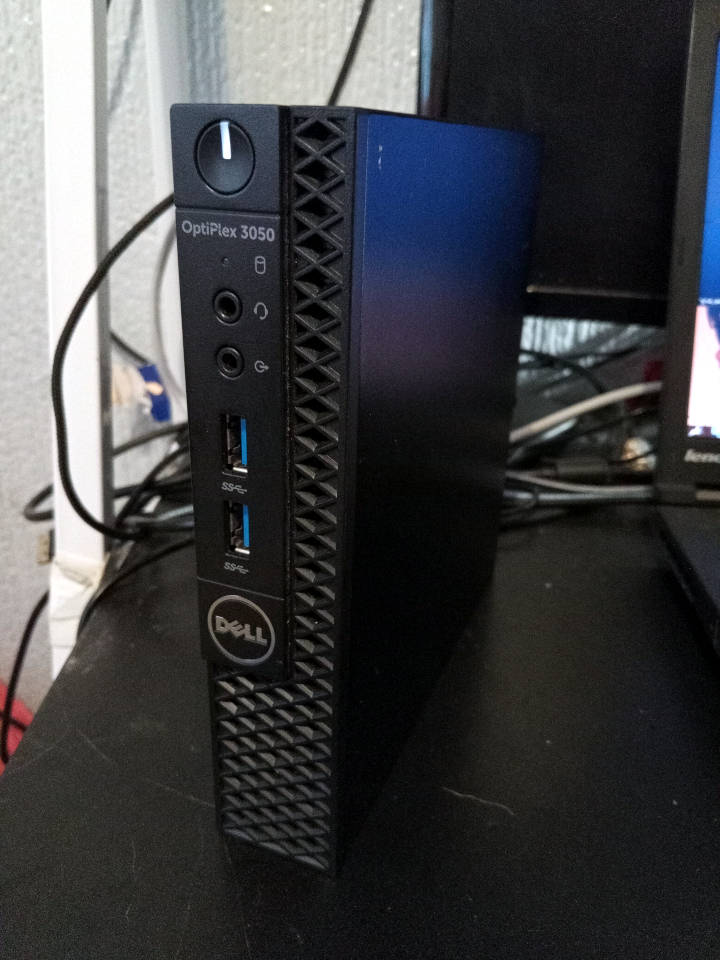
| Specifications | |
|---|---|
| Manufacturer | Dell |
| Name | OptiPlex 3050 Micro |
| Released | 2017 |
| Chipset | Intel B250 |
| CPU | LGA 1151 - Intel 6-9th gen., up to 35W TDP |
| Graphics | Intel HD 510 -> UHD 630 |
| Memory | DDR4 SODIMMs (max. 32GB, 2x16GB) |
| Architecture | x86_64 |
| Original boot firmware | Dell UEFI firmware |
| Intel ME/AMD PSP | Present. Can be disabled with me_cleaner. |
| Flash chip | SOIC-8 16MiB |
W+: Works without vendor firmware;
N: Doesn't work;
W*: Works with vendor firmware;
U: Untested;
P+: Partially works;
P*: Partially works with vendor firmware
?: UNKNOWN AT THIS TIME| Features | |
|---|---|
| Internal flashing with original boot firmware | W* |
| Display (if Intel GPU) | W+ |
| Audio | W+ |
| RAM Init | W* |
| Payloads supported | |
|---|---|
| GRUB (libgfxinit only) | Works |
| SeaBIOS | Works |
Buy pre-installed
Dell OptiPlex 3050 Micro is available to purchase with Libreboot preinstalled. See: https://minifree.org/product/libreboot-3050-micro/
Official information about the computer can be found here: https://www.dell.com/support/manuals/en-uk/optiplex-3050-micro/optiplex_3050-mff_om/processor-specifications?guid=guid-8ca53ab2-a85d-42d5-9106-5214220306aa&lang=en-us
Get the ROM image
Download from release
If you’re using a release ROM, please ensure that you’ve inserted extra firmware required refer to the guide for that (, failure to adhere to this advice will result in a bricked machine):
- Intel ME
- Intel FSP
Latest Release is advised, scroll below for more.
Build from source
./mk -b coreboot dell3050micro_vfsp_16mbFlash a ROM image
Software
Before internal flashing, Disable /dev/mem protection first.
In short add this kernel parameter: iomem=relaxed(linux distro)/kernel.securelevel=-1(bsd distro)
THEN REMOVE THIS KERNEL PARAMETER TO PREVENT UNAUTHORIZED/MALICIOUS ACCESS TO YOUR SYSTEM AFTER FLASHING LIBREBOOT.
(An important reminder for those who might forget to delete it, even better, replace it with lockdown=integrity / lockdown=confidentiality)
Backup the previous (working) firmware (atleast) twice (to check and compare if reading it gone wrong and backups differs.)
flashprog -p internal -r Backup1.bin

flashprog -p internal -r Backup2.bin
Check and compare those if reading from the flash were successful:
diff Backup1.bin Backup2.binFor more than 2:
shasum Backup1.bin Backup2.bin Backup3.binIf those differs, something gone wrong and proceeding further may (DON’T) leave your device unrecoverable (without a reliable backup) if flashing fails as well.
If you’re already running Libreboot, and you don’t have flash protection turned on, internal flashing is possible.
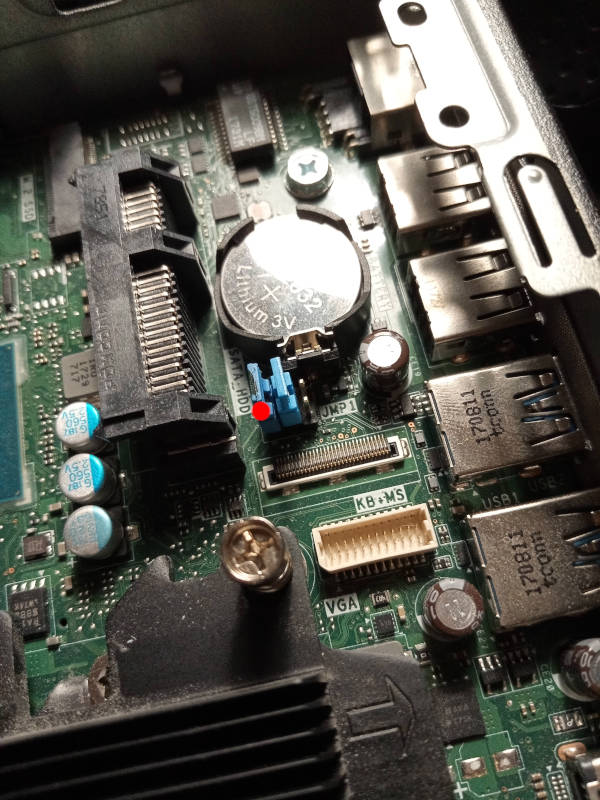
If you have factory firmware (Dell), you can short the service jumper. It’s near the RAM, under where the HDD goes (click the photos shown above). Just put a short on it when booting, and all flash protection is disabled; the factory firmware write might EFI variables to flash during shutdown sequence, so you should pull the plug to shut it down (remove the power by pulling the plug) after flashprog says VERIFIED.
Hardware
For general information, please refer to 25xx NOR flash instructions - that page refers to use of socketed flash.
Backup the previous (working) firmware twice (to check and compare if reading it gone wrong and backups differs.)
flashprog -p serprog:dev=/dev/ttyACM0,spispeed=16M -r Backup1.bin

flashprog -p serprog:dev=/dev/ttyACM0,spispeed=16M -r Backup2.bin
Check and compare those if reading from the flash were successful:
diff Backup1.bin Backup2.binFor more than 2:
shasum Backup1.bin Backup2.bin Backup3.binIf those differs, something gone wrong and proceeding further may (DON’T) leave your device unrecoverable (without a reliable backup) if flashing fails as well.
The side cover comes off easily, and you can find the flash ICs next to the RAM. Simply remove the screw at the back. The top panel then slides forward, and you can remove the SSD caddy; from then on, the flash is accessible.
Observe the following photo of the flash (SOIC-8):
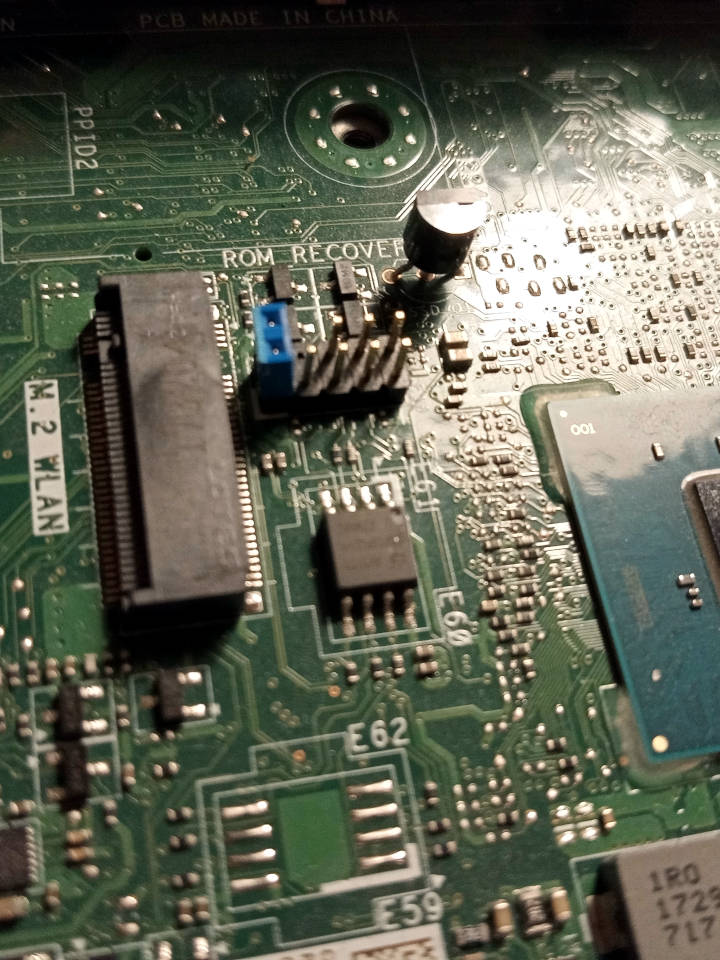
You can otherwise flash internally, including from factory firmware (if the service jumper is set).
MAC address
This has a Realtek NIC inside, instead of Intel, so the MAC address will not change. This means: there is no GbE region in the flash.
You can still use something like macchanger to change your MAC address from Linux if you want to.
This is great, because that’s one less complexity to deal with during installation.
Works by deguard utility
Mate Kukri’s deguard utility disables the Intel Boot Guard on this machine. Libreboot uses this by default, along with me_cleaner to provide a neutered ME setup; unlike on other platforms, arbitrary code execution is also possible inside the ME on this motherboard, giving it much higher potential for software freedom in the future.
Of particular interest, this board uses the deguard software, to disable Intel Boot Guard. This means also that the ME firmware no longer has functional cryptographic signature checking for most of it; you can theoretically run whatever you want on the ME coprocessor.
Libre ME doesn’t exist yet, but it’s now possible. Example use-case for a libre ME could include, for example, running an out-of-bound packet filter on a secure network (with flash write protection, making it invincible to any OS-based software attacks).
6-8 core processor mods
Issues/Not working
This machine basically works flawlessly, as of the Libreboot 20241206 release. All the initial bugs were fixed, e.g. PWM fan control works now. A very nice machine, and inexpensive, plus very easy to set up for the average user. The ideal Libreboot desktop.
HMDI audio
Works, but you have to select it in your audio server e.g. pipewire. The pavucontrol utility in Linux (with pipewire) lets you have a lot of control over audio I/O. Libreboot patches the board to add a verb, so headphones should work.
Selection of audio devices and outputs is a bit idiosyncratic on this board. Just play with pavucontrol for your setup and it should work fine.
VGA output
All 3050 Micros have one Displayport and one HDMI output. These work very well, but a few models have a VGA output via add-on board.
The VGA output is actually a digital to analog converter internally, on an expansion board mounted to the rear chassis. In testing, this worked fine with the Libreboot payloads e.g. SeaBIOS and GRUB, but then Linux wouldn’t show any output to the screen.
This should be investigated/fixed, but for now, you might use your own digital to analog converter. For example, Displayport to VGA converters are very cheap and easy to find.
Linux can be hit or miss with these adapters, as can libgfxinit (when showing payloads), so you just have to try a bunch of adapters until one works.
The onboard DisplayPort and HDMI outputs work fine. It’s just the VGA port that can be a bit flaky depending on your operating system.
Warning regarding NVMe SSDs
Please use at least Libreboot 20241206 revision 3 or higher. This is because older revisions contained a bug, where the NVMe SSD would be replugged under Linux, randomly, leading to data loss.
This is fixed in 20241206 rev3 or higher, by disabling PCI-E hotplug on the NVMe SSD slot.
See: Libreboot 20241206 release
Errata
Power-on after power failure
Older Libreboot revisions made this machine always turn on, when plugging in a power supply (charger brick), if a previous power loss was observed. This is because coreboot sets a special register in the PMC that configures such behaviour, but it was hardcoded to always-on. This is undesirable for most people, so Libreboot 20241206 revision 8 and newer releases contain the following modification:
https://codeberg.org/libreboot/lbmk/commit/09a01477df67e3ddc36e11123c537332d7813c50
If you wish to modify this behaviour again, you could modify the patch referenced there; the actual location of the .patch file may change over time, so you can basically just modify the coreboot source file at src/soc/intel/common/block/pmc/pmclib.c (for the coreboot tree under src/coreboot/ in lbmk, pertaining to your board, which can be determined by reading the tree variable in your board’s target.cfg file within lbmk).
Use the patch as reference, to modify the coreboot behaviour as you wish, and re-compile from source.
TPM disabled
The TPM is disabled on this device, to prevent hanging/boot delay in SeaBIOS, due to buggy TPM drivers there.
Legacy 8254 timer
Legacy 8254 timer enabled in coreboot, to prevent SeaBIOS from hanging.
HyperThreading on 3050 Micro
NOTE: The 3050 Micro is available in different CPU configurations. Before considering to enable HyperThreading support, make sure it is supported by the CPU of your 3050 Micro.
Also called SMT. This is a feature where you get 2 threads on a single core. It can improve performance in some workloads, but is actually a performance liability in others, depending on your OS kernel/scheduler and the actual workload.
It is a security liability, due to the Spectre/Meltdown attacks, so we recommend turning it off, at the very least from your running operating system. On this platform, you can easily turn it off from coreboot.
Libreboot disables HyperThreading by default, from Libreboot 20241206 rev8 onward, on this board. To turn it back on, please build from source and before running the build command, do this:
./mk -m coreboot dell3050micro_vfsp_16mbIn the menu that appears, go Chipset -> Enable Hyper-Threading and turn it on. Then exit from the menu, saving the config where prompted. You will see this menu twice, because there are two configs for each of these boards.
SMT is rarely of benefit in practice, but can be useful in some circumstances. For example; - Games, with proper smt utilization. - Compiling a large codebase from source that takes hours, SMT increases the building speed by about 15 percent; for example, a 3 hour build job might take about 2 hours and 40 minutes instead.
Expanded_Specifications

| Specifications | |
|---|---|
| Manufacturer | Dell |
| Name/Variant | 3050 Micro |
| Released | 2017 |
| Chipset | Intel B250 |
| CPU with venfor fw. | LGA 1151; Intel 6th gen. Core & 7th gen. Core processors, up to 35W TDP |
| CPU with LibreBoot fw. | LGA 1151; vendor fw. supported cpus included + 6/7th gen e3 xeon processors & Intel 8th gen. Core with B0 stepping; i3, Pentium Gold and Celeron + 9th gen. Core with B0 stepping; i3, Pentium Gold, Celeron processors, up to 35W TDP |
| Graphics | Intel HD 510/530 (Skylake) & HD 610/630 (Kaby Lake) and with Libreboot UHD 610/630 (Coffee Lake) |
| Audio | Realtek ALC3234 HD |
| Memory | DDR4 SODIMMs (max. 32GB, 2x16GB) |
| Networking | Realtek RTL8111HSD-CG, optional wifi |
| Expansion Slots | PCIe 3.0 x2 in M.2 M-key with 2280 max. size |
| Storage connectors | SATA III |
| I/O Ports on Front | 2x Jack audio in (mic & speaker), 2x USB 3.1 Gen. 1 |
| I/O Ports on Back | RJ45 1GbE (Ethernet), 2x USB 2.0, 2x USB 3.1 Gen. 1, Displayport, HDMI, Security cable slot (Kensington lock), optional; PS/2, SCOM, |
Markdown file for this page: https://libreboot.org/docs/install/dell3050.md
This HTML page was generated by the Libreboot Static Site Generator.